- Superhuman AI
- Pages
- AI Tutorials for Design, Documents & Visual Content
AI Tutorials for Design, Documents & Visual Content
THE AI ACADEMY
How to use Adobe Photoshop, Express, and Acrobat in ChatGPT

Adobe just brought Photoshop, Express, and Acrobat into ChatGPT so you can edit photos, design visuals, and polish documents just by describing what you want. Here’s how:
Sign in to ChatGPT.
Go to “Settings” > Apps & Connectors > Adobe Photoshop/Acrobat/Express > Connect
Additional details can be found here: Edit with Photoshop in ChatGPT | Adobe Blog
For Adobe Photoshop: Upload an image and type prompts to remove objects, change backgrounds, or apply effects. Use sliders to adjust settings.
For Acrobat: Upload and edit PDFs, extract text, convert formats, merge/split files, compress documents, and add watermarks.
For Express: Search Adobe Express’ vast template library to find the best one for any moment, replace images and text, and animate elements to generate content on the fly.
Log in to ChatGPT and start creating your next big idea today.
How to create brand-friendly mockups with Nano Banana Pro

Source: andyorsow
Go to Gemini and sign up.
Click Tools > Create Image 🍌
Upload a screenshot of the website to the image generator
copy + customize prompt below:
Sample Prompt: Remove the browser UI and place the pasted website screenshot naturally on the screen of an [Apple Pro Display].
Use the screenshot to guide:
- Interior Style: [everyday, modern, approachable, clean lines, soft color accents]
- Profession of the Space Owner: [software product manager]
- Mood: [dark walls, well-staged but lived-in, creative, and realistic]
- Time of day: [night]
Camera: high-end lifestyle brand film photography, long focal length, close-up framing with shallow depth of field, soft bokeh, slight chromatic aberration at the edges.
Intent: a cohesive, high-quality but approachable scene where the environment gently mirrors the screenshot’s style without feeling luxurious or overly curated.
Within seconds, you’ll get your personal brand mock-ups ready to share.
How to restore old photos with NanoBanana
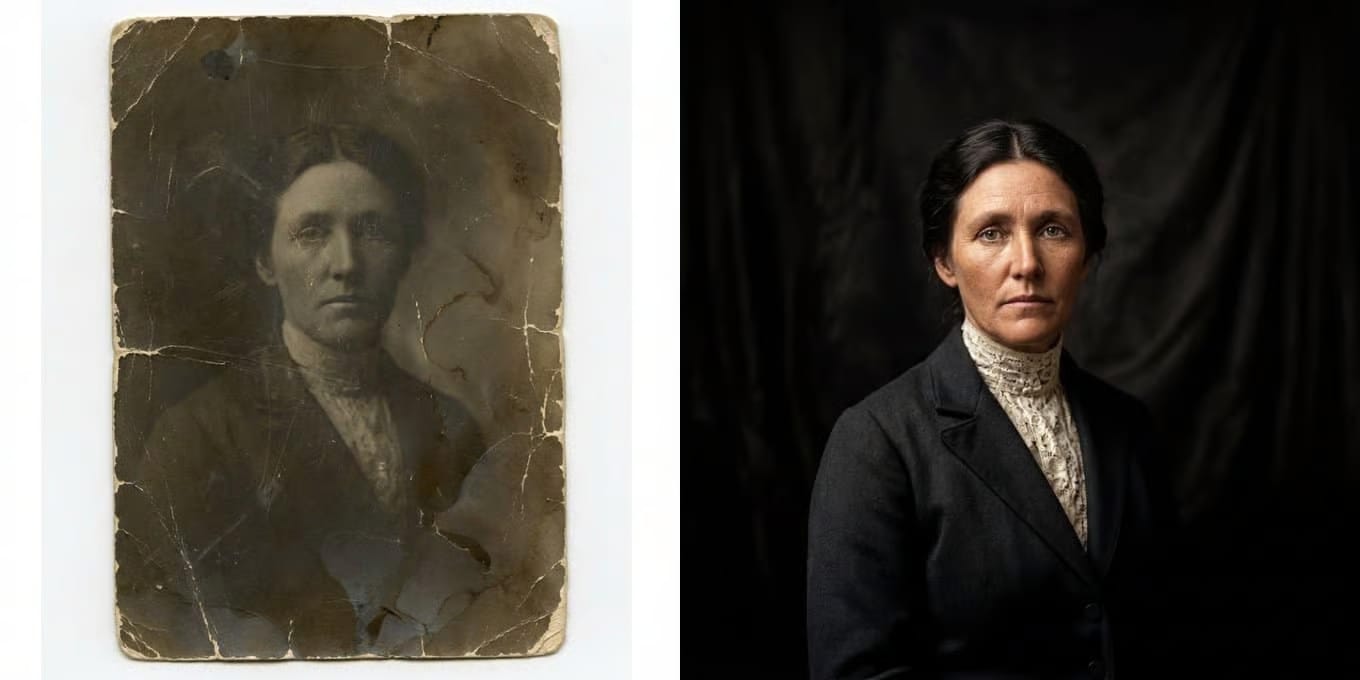
Go to NanoBanana and sign up.
Click on ‘Tools’ > ‘Create Image 🍌‘
Upload your old, damaged photo and enter your prompt.
Sample Prompt: Faithfully restore this image with high fidelity to modern photograph quality, in full color, upscale to 4K
Click Create, and within seconds, Gemini will produce a beautifully restored, high-fidelity 4K version of your photo.
How to turn any YouTube video into an infographic with AI
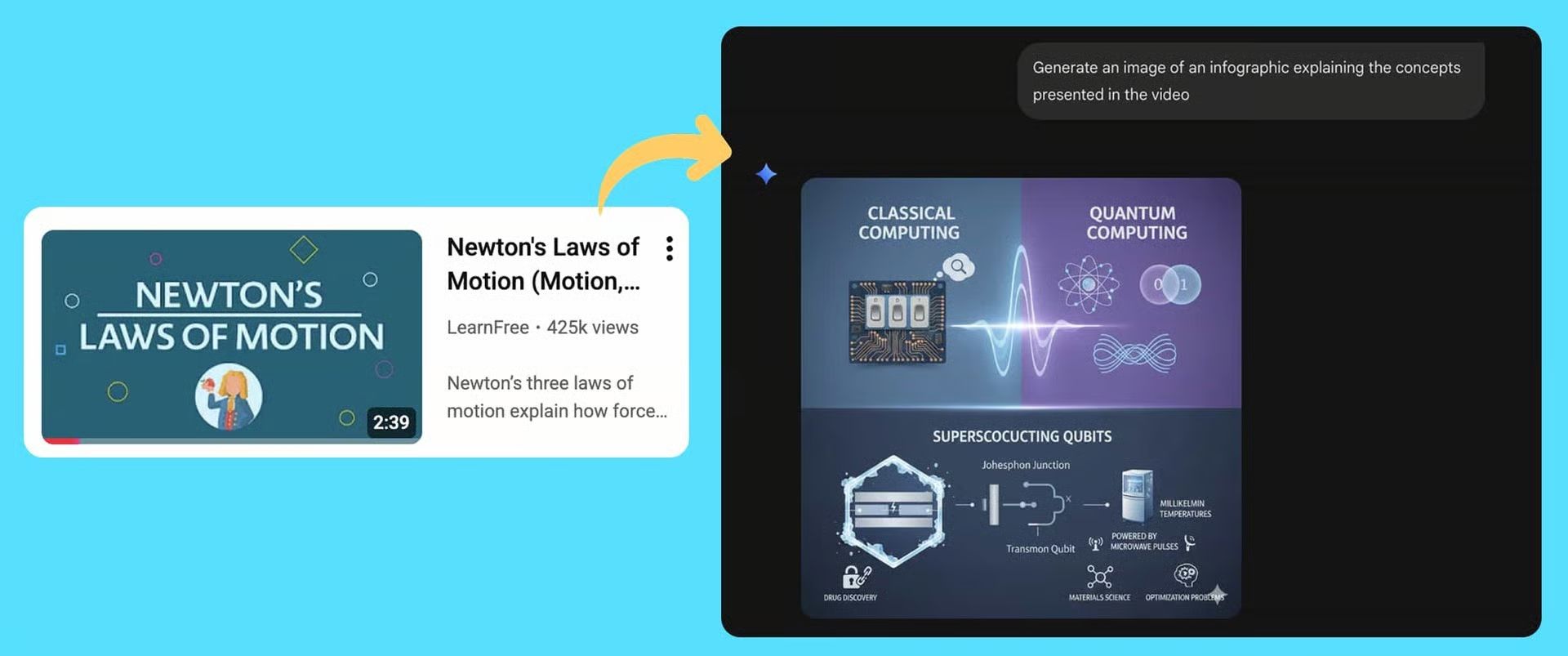
Open YouTube and copy the URL of the video
Go to Gemini, paste your YouTube URL, and add a prompt
Sample Prompt: Analyze the content of this video deeply: [enter YouTube URL]
Once the content is generated, turn on the ‘Create Image 🍌‘ option and enter your prompt to turn it into an infographic
Sample Prompt: Generate an image of an infographic explaining the concepts presented in the video
Gemini will generate a ready-to-use infographic based on the video’s content
How to make pro infographics with Figma Make

Go to Figma, sign in, and open ‘Make’ (or go to Figma Make directly).
Upload a reference infographic, write your prompt, and press enter
Sample Prompt: Turn the article below into a single-page, info-dense infographic for LinkedIn (1080×1350). Use my brand palette [#HEX1, #HEX2, #HEX3]. Create a clear hierarchy (H1 title, 3–5 section headers, concise bullets), simple icons, and a clean grid. Highlight key stats as callouts, include a minimal footer CTA [enter CTA], and keep body text ≤ 14 words per bullet. Here’s the article: [paste text]
Wait a few seconds for the first draft
Refine with short prompts (e.g., ‘tighten bullets,’ ‘bigger stat callouts) or tweak in the code editor
Click ‘Publish’, copy the public URL
Open the HTML to Design plugin, paste the URL, and import back into Figma
Edit layout, colors, and icons as needed and export as PDF
How to create pro PDFs with AI

Go to Grok and sign up.
Type a detailed prompt outlining the type of document you're creating (resume, research paper summary, or invoice). Be specific about content, format, and tone.
Sample Prompt: Create a professional CV for a Software Designer with 5+ years of experience. Highlight skills in UI/UX, design systems, prototyping, Figma, and collaboration with developers. Include work experience, education, portfolio links, and a brief personal summary. Create a PDF.
Grok will generate a preview of your document.
You can make changes by sending follow-up prompts or editing the LaTeX code directly via the Code button.
Once you're satisfied, click the Download button to save the final PDF.
You can also use this process for ChatGPT, Gemini, Claude, and other chatbots.
How to create professional headshots with NanoBanana

Open Gemini and select NanoBanana as your model
Upload your image
Use the prompt below and press ‘Enter’
Sample Prompt: Using the attached picture as an exact reference, generate a high-resolution professional headshot that preserves 100% of my facial features, including face shape, hair, skin, tone, and expression. Apply studio quality lighting and a soft neutral background, and adjust my attire to formal professional wear, ensuring the image exudes confidence and approachability.Wait for your result and tweak if necessary
How to design creatives with GenSpark AI Designer

Go to Genspark AI Designer and sign up.
Enter your prompt and describe your creative.
Alternatively, choose the type of creative you want to design and use built-in templates.
Sample Prompt: Write a viral Facebook ad for an AI newsletter that teaches busy professionals AI tools, tutorials, and trends in 3 minutes a day. Use a bold hook, highlight time-saving and career benefits, add social proof (1M+ readers), and end with a clear CTA to subscribe. Keep it under 60 words, conversational, and engaging.
Within seconds, AI searches, analyzes, and generates 4 design options.
Refine with follow-ups like ‘make it minimalistic’ or ‘add more color.’
Export your design and use it where needed.
Bonus: You can also create posters, flyers, product photos, wallpapers, comics, and more with the same tool.